
AppointFrame User Manual
Unified application, using Generic terminology
Updated 1 November 2026
Older illustrative screenshots contain fictional demonstration data; verify the deployed version before following a newly introduced workflow.
Contents
- About this manual
- Recommended first-time setup order
- Signing in and navigation
- Overview
- Appointments
- Services: Individual or Group
- Group Sessions
- Participants
- Staff
- Operating hours
- Date overrides
- Session Packages
- Communications - reminder attention and manual sends
- Reports
- Settings overview
- Settings → General
- Settings → Booking
- Settings → Notifications and WhatsApp Utilities
- Settings → Message Templates
- Settings → Branding
- Settings → Administrator and Client assistance
- Public booking for a new external Participant
- Secure Participant access for existing clients
- WhatsApp client self-service Flows
- Data workspace
- Migration
- Audit Trail
- Technical diagnostic log
- Email, calendar and WhatsApp behavior
- Common workflows
- Mobile and tablet use
- Data safety cautions
- Basic troubleshooting
- Quick glossary
AppointFrame · User Manual
Using AppointFrame end to end
Unified application guide covering administrator Calendar and Planner, recurring and Group scheduling, Session Packages, client-initiated package requests, payer associations, Resources, availability exceptions, dated closures, secure Participant/Staff access, Email/WhatsApp communication, Session Notes, reporting and operational history.
Version note: The application behavior described here follows the supplied Unified source. Older demonstration screenshots and the September 2026 Developer/Architecture guides are retained as historical illustrations and technical references. Confirm that your hosted organization has received the corresponding application update.
Privacy: all examples and screenshots use fictional demonstration data only.
1. About this manual
AppointFrame is a focused appointment scheduling and continuity system for organizations that need to manage availability, appointments, Staff workload constraints, reminders, Session Packages and Payment Statements, client/Staff communication, internal session notes, reporting and operational history without turning the product into a general CRM or business-management suite.
This manual describes the Unified AppointFrame application using Generic terminology. Studio-specific labels can be changed in Settings; some older screenshots use the Generic defaults such as Participants, Staff, Services and Session packages.
Privacy: Every person, email address, phone number, appointment and organization shown in this manual is fictional demonstration data. No Live customer data is used.
2. Recommended first-time setup order
A brand-new installation now uses a guided first-run setup rather than expecting the administrator to discover every dependency manually.
- Initial setup - create the administrator, Organization name and Organization timezone. AppointFrame creates an active physical Main location using that timezone and opens the administrator Calendar.
- Operating hours - define at least one recurring Organization availability window.
- Services - create an active Service and at least one active Service + Location/Meeting Offering with its rate/currency.
- Staff - create an active Staff member who can deliver the Service. Custom Staff hours are optional when Organization hours are sufficient.
- Participants - create the client/participant who will receive the entitlement.
- Session package - create an active compatible Package for that Participant and Service/Offering.
- Finish setup - once the required records exist, finish the checklist. Setup Mode is then permanently complete for the Organization and does not reappear later.
The checklist is calculated from real database records. While Setup Mode is active, Continue setup advances to the next incomplete requirement and Setup checklist returns to Calendar. Saving a form does not force the administrator out of that screen.
After setup is finished, ordinary appointment validation handles later configuration problems. Deactivating a Staff member, changing hours or letting a Package expire does not restart the onboarding wizard.
Notifications are optional during onboarding. Fresh installations begin with Organization-level Email/WhatsApp routing, appointment reminder automation and WhatsApp Utilities disabled. They can be enabled deliberately later under Administration → Settings when the deployment channels and approved templates are ready.
When onboarding an existing business, Migration can create/reuse Participants, Services, Staff, Locations/Offerings and Packages. The setup checklist re-reads those committed records; Organization Operating Hours still need to be configured separately.
3. Signing in and navigation
The administrator signs into the main application with the administrator username and password. This is the only full-privilege application account.
The normal landing workspace is Appointments → Calendar. Calendar is the day-to-day operating surface; Planner is the batch/construction surface.
The desktop header contains the Organization identity plus two global actions: Search and + (New appointment). Sign out remains in the desktop header. On hamburger layouts, Sign out moves into the navigation drawer so the compact header can remain readable.
The primary navigation is intentionally short:
- Appointments - Calendar, Planner, Recurring schedules and Saved appointments;
- Participants;
- Session packages;
- Administration - Overview, Staff, Services, Operating hours, Date overrides, Communications, Reports, Migration, Settings, Data and Audit Trail.
The global + opens Add appointment from any administrator workspace. It uses the same appointment engine and does not bypass Package, availability, Location/Meeting, capacity or conflict rules.
On smaller screens the left navigation becomes a drawer and the current section/workspace is shown in the context bar. Appointment workspace tabs remain on one line using shorter mobile labels where needed.
4. Overview
Overview is the Organization-level operational summary formerly labelled Dashboard. It sits under Administration because Calendar is now the normal daily landing page.
Overview loads when it is opened rather than being required for every login. Its headline figures can be filtered by Location / Meeting and Staff.
Today and This week are evaluated using each appointment's authoritative scheduling timezone rather than the browser or server clock.
- today's total, completed, remaining, no-show and cancelled appointments;
- the same high-level figures for the current week;
- unique Participants and completed duration;
- Location / Meeting and Staff filters;
- links into Reports and operational detail;
- Attention required for factual items that need administrator review or action.
Package-level Attention items identify the package holder/payer so similarly named package labels remain operationally distinguishable. Communications/retry work remains in Administration → Communications, not duplicated in Overview.
5. Appointments
The Appointments area now has four deliberately different workspaces:
- Calendar - operate saved appointments in Day or Week view.
- Planner - construct/review a week, prepare recurring drafts, copy schedules and work with several rows together.
- Recurring schedules - store repeating rules independently from appointments.
- Saved appointments - retrieve persisted history with filters and lazy detail loading.
5.1 Calendar - run the saved schedule
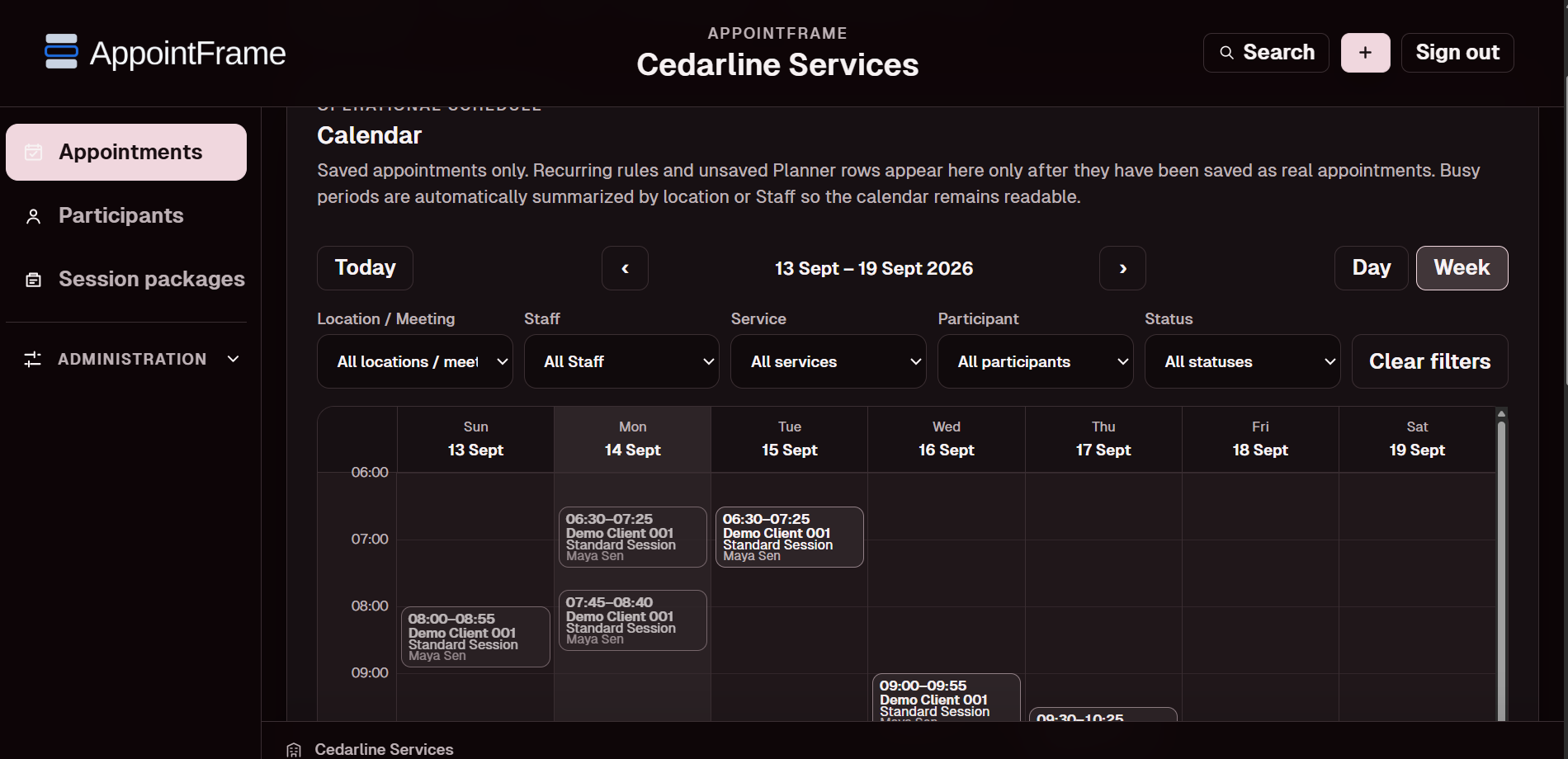
Calendar is the default administrator workspace and shows only real saved appointments. Recurring rules and unsaved Planner drafts do not appear until they have become appointments.
- Use Day or Week, Today/previous/next navigation and filters for Location / Meeting, Staff, Service, Participant and status.
- Click an eligible upcoming Scheduled appointment to use the existing appointment editor/lifecycle actions. Historical/non-editable outcomes remain visible and hand off to Saved appointments where appropriate.
- Group Sessions appear as one Calendar event rather than one event per participant.
- For light schedules AppointFrame opens the detailed Calendar directly. Dense Organization scopes are summarized by Location, and dense Location scopes can be summarized by Staff, so very large schedules are not rendered as thousands of overlapping cards.
- On compact screens Week uses a vertical agenda; Day remains a detailed timeline where practical.
5.2 Add one or many explicit Individual appointments
Use the global + from anywhere in the administrator application, or Add appointment from Planner, when the appointments should be created now. Choose Participant, Service, Location / Meeting and Staff once, then choose one or many exact date/time slots. The dates do not need to follow a pattern.
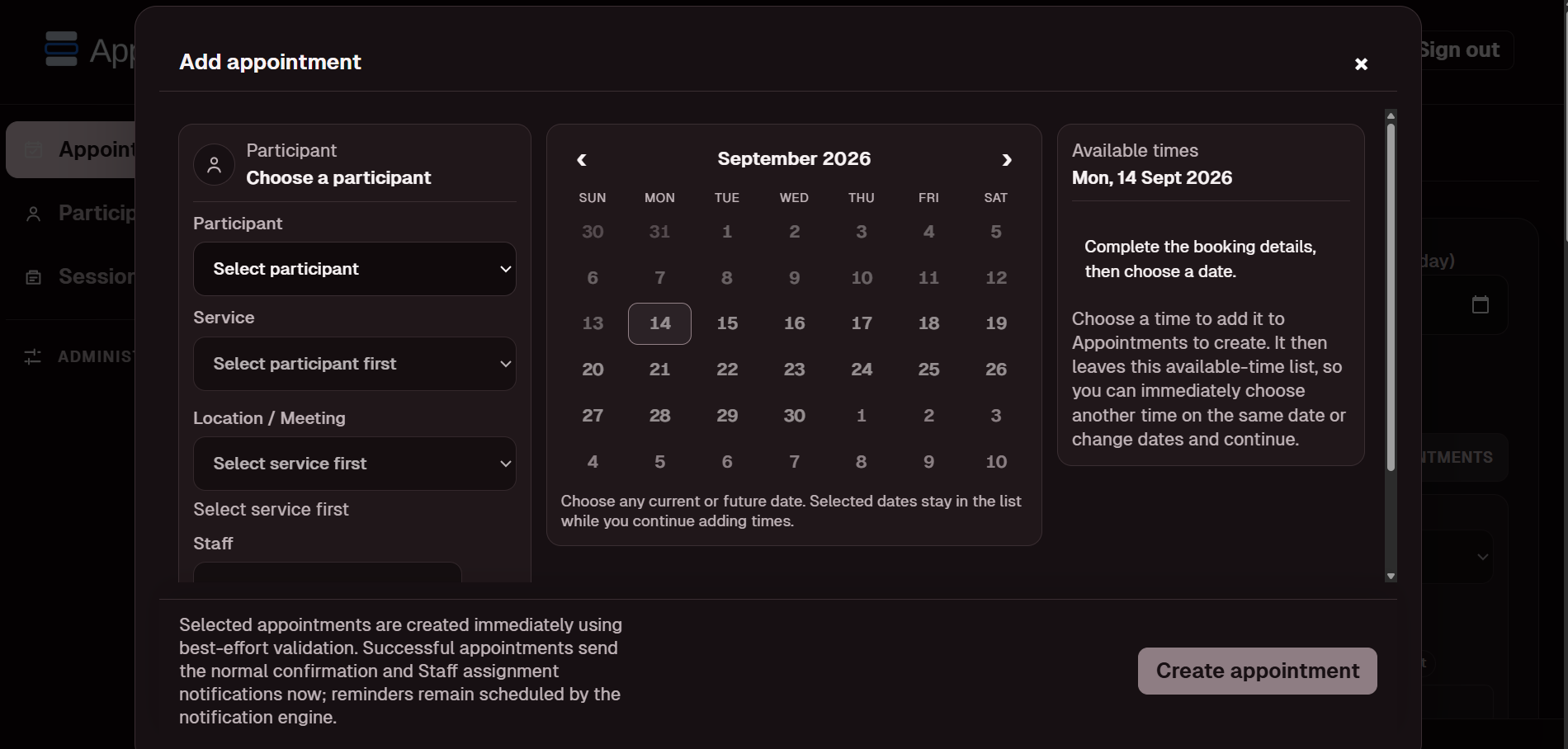
- Selected appointments are submitted immediately; they are not merely staged in the visible Planner.
- Creation is best-effort: valid rows are persisted, while invalid rows report their own reason.
- Every row is revalidated for Offering, timezone-aware hours/overrides, Staff availability/capacity, conflicts and Package eligibility.
- Batch validation is cumulative. A fixed Package cannot be over-reserved by selecting more future appointments than its remaining schedulable capacity.
- Successful appointments enter Calendar immediately and follow the normal lifecycle. Confirmation and Staff assignment can send now when routing is enabled; future reminders remain governed by the reminder engine.
5.3 Planner - build and review a week
Planner is the batch/construction workspace. It groups rows under visible day/date headers, keeps rows ordered by date/time and preserves prepared work while the administrator reviews the selected Sunday-to-Saturday week.
Use Planner for Add appointment, Add group session, Copy previous week/month, recurring-generated drafts and other batch-oriented work. Once an appointment is saved, normal one-at-a-time operation can be done directly from Calendar without returning to Planner.
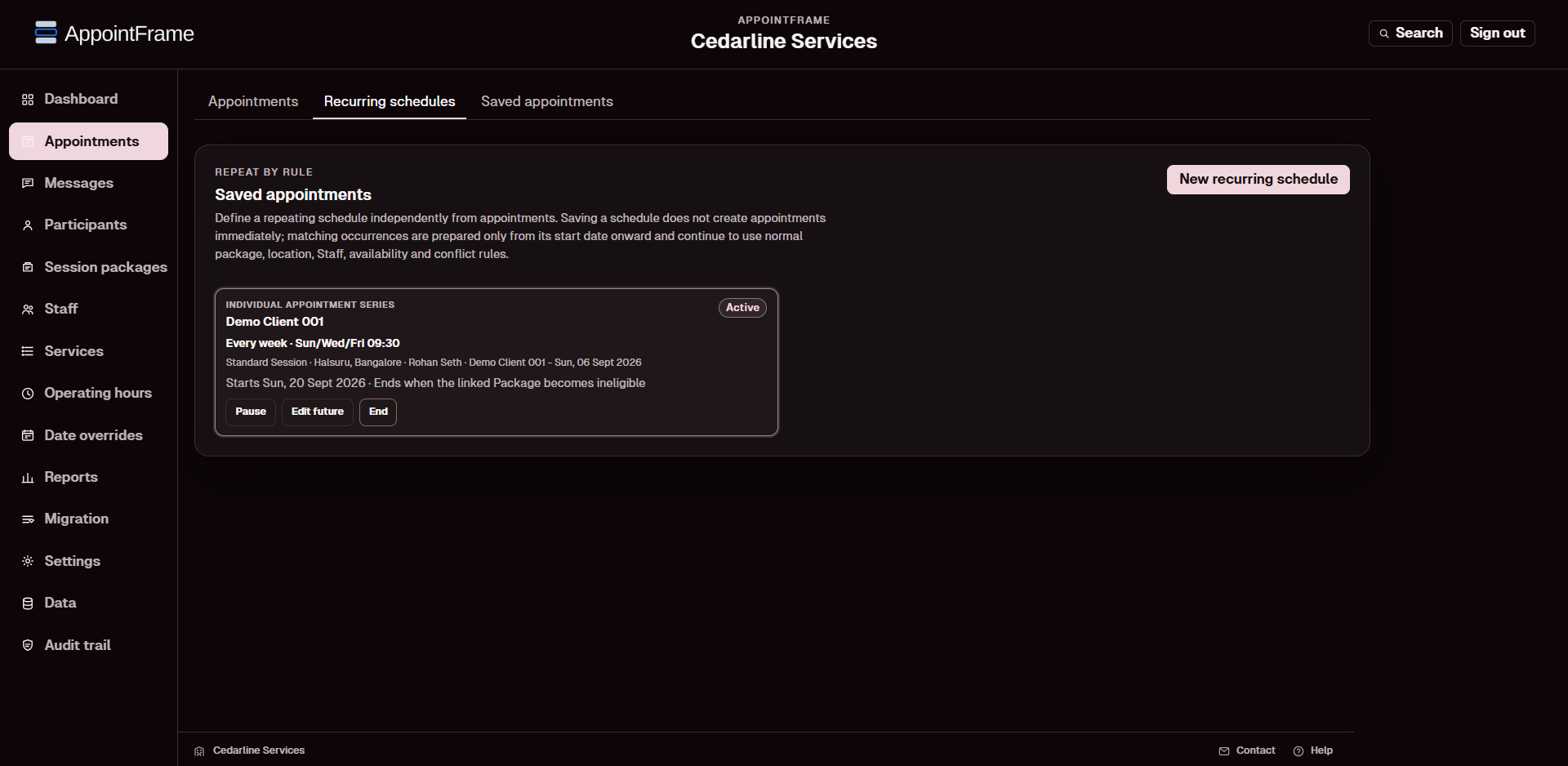
5.4 Recurring schedules are rules, not immediate bookings
Use Recurring schedules → New recurring schedule when the requirement is a genuine repeating pattern. Saving the schedule definition does not create a seed appointment and does not create all future appointments upfront.
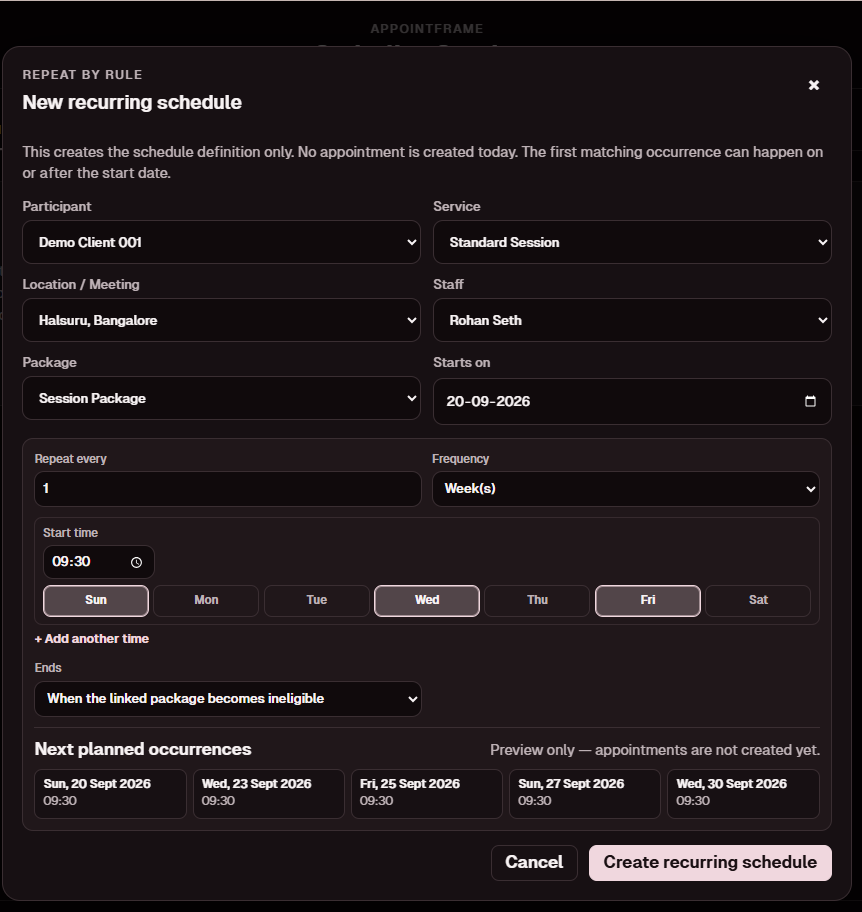
- Choose Individual appointment or Group session.
- Individual schedules require Participant, eligible Package, Service, Location/Meeting and Staff.
- Group schedules use Service, Location/Meeting and Staff; participants remain occurrence-specific.
- Start date is explicit and cannot be in the past for a new schedule.
- Weekly rules support multiple weekday/time patterns and every-N-weeks cadence.
- Monthly rules support a date-of-month or an nth/last weekday pattern.
- Individual schedules can end when the linked Package becomes ineligible, after a count, or on a date. Group schedules can have no automatic end, a count limit, or an end date.
- The preview shows the next planned occurrences only; it is not an appointment list.
When an Individual recurring week is opened in Planner, matching occurrences are prepared as drafts and still pass normal validation before they are saved as appointments. Recurring Group schedules prepare empty Group Session shells from their start date onward.
5.5 Copy previous week / month
Copy-forward tools are convenience operations, not blind clones. Every proposed appointment is revalidated against current Offering, Staff, Package, Location/Meeting, operating-hours, date-override, capacity and conflict rules. Use recurring schedules for genuine rules; use copy-forward when reproducing a broader operating pattern.
5.6 Saved appointments
Saved Appointments begins with server-side date summaries. Filters include date range, Location / Meeting, Staff, Service, format, status, Package/Cycle and search. Appointment detail for a date is fetched only when that date is expanded, so large histories do not delay the active schedule.
5.7 Appointment outcomes and Package consumption
Completed appointments always count toward Package consumption. Organization package policy decides whether No-show and Cancelled outcomes consume entitlement. Scheduling capacity is checked before creation, while consumption/progress changes when the appointment reaches a counted outcome.
5.8 Staff capacity and one-appointment override
The Staff selector can compare current daily load and Service-specific limits. An explicit one-appointment administrator override may assign another available Staff member without changing that Staff member's permanent Service mapping. Recurring schedules themselves require the normal permanent Staff-Service mapping.
5.9 Calendar Sync / external calendar intake
Calendar Sync reviews read-only events from a configured provider. Map the event to Participant, Service, Location / Meeting, Staff and an eligible Package, validate it, then import only Ready rows. Imported rows become ordinary AppointFrame appointments and use the normal lifecycle from that point onward.
6. Services: Individual or Group
A Service is the reusable appointment definition: name, description, duration, active state and exactly one scheduling format - Individual or Group.
Where a Service can actually be delivered is represented separately by Service Location Offerings. An Offering joins the Service to one physical Location or one Online Meeting and carries the scheduling/commercial details that belong to that delivery option, including currency/rate and Offering availability where configured.
- One Service can have multiple Location/Meeting Offerings.
- Staff remain location-independent records but can be constrained by their configured Location scope.
- New package entitlement is tied to the exact eligible Offering and one package currency.
- Changing a current Service/Offering default does not rewrite frozen rates already stored in an existing package cycle.
- Meeting mode/location is never inferred from the Service name.
6.1 Service-specific availability
Service availability is entered through the grouped weekday editor. Multiple windows can be added under one selected weekday, and Add by duration can continue from the latest configured end time. Service availability narrows the broader organization/Location/Staff rules; it does not create a separate calendar.
6.2 Public Service Offerings and Resources
A Service Type has a public-booking flag. The client-facing package request catalog includes only active, public Service Types with active Service + Location Offerings, active Locations and configured positive rates. An administrator may still manage private/internal offerings through the authorized application workflow.
Unified also supports Resources belonging to physical Locations, such as a room, chair or equipment. A Resource can be associated with eligible Service Offerings and reserved for appointments or Group Sessions. Resource eligibility is checked separately from the Staff and Service rules; a Resource removed from an Offering can make an existing future assignment require review without changing that appointment automatically.
7. Group Sessions
Group Sessions are administrator-created session shells. A Group Service remains distinct from an Individual Service and can define maximum capacity, optional minimum participants and the minimum-participant evaluation window.
7.1 One or many explicit Group Sessions
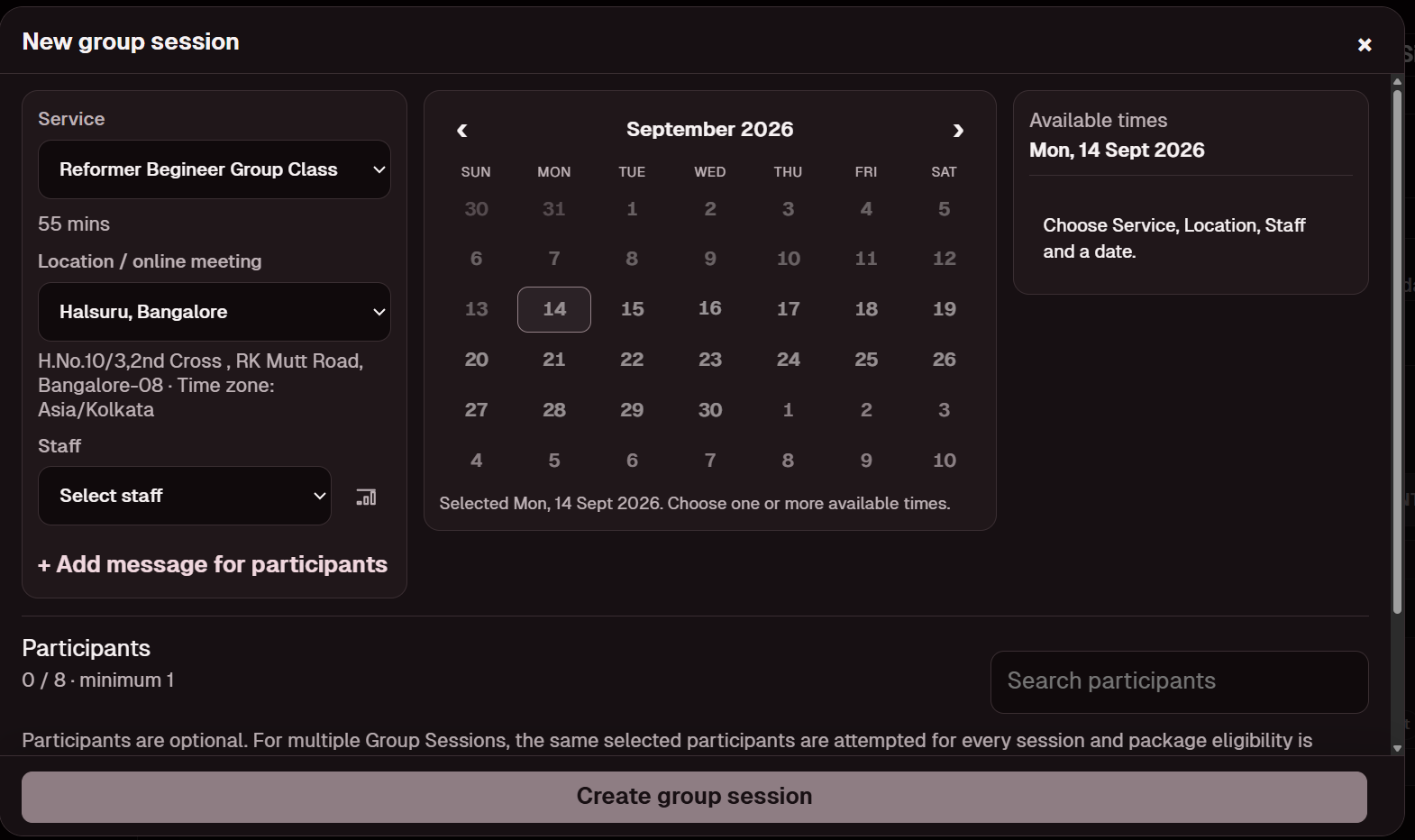
Add group session reuses Service, Location / Meeting and Staff while you choose one or many exact date/time slots. These explicit sessions are created immediately using best-effort validation. Participants are optional. If participants are selected, the same set is attempted for each session and Package eligibility is revalidated separately per session/date.
7.2 Recurring Group schedules
A repeating Group pattern belongs in Recurring schedules, not inside Add group session. The rule can be weekly/every-N-weeks or monthly and can end by session count/date or remain open-ended. Matching operational weeks prepare empty Group Session shells; they do not create a permanent participant roster.
7.3 Participants and lifecycle
Eligible clients can join/leave an existing Group Session through supported secure self-service without seeing other participants. Minimum/capacity rules remain attached to the real Group Session. Group rescheduling remains administrator-owned; there is no client Group reschedule flow.
8. Participants
Participants stores the identities and contact details used by scheduling, package membership, secure client access and communication. A Participant can also have an optional timezone and preferred Location; these guide presentation/defaulting without inventing a hard restriction when another eligible Location is deliberately selected.
- add/search/filter active or inactive Participants;
- edit email, phone, timezone, preferred Location and notification preferences;
- review Appointment History and Communication History;
- schedule directly for an active Participant;
- deactivate/reactivate without erasing history.
8.1 Contact identity
Email and phone may support notifications and secure client access. A legitimate family/shared payer contact can appear on more than one Participant; AppointFrame does not assume an email address uniquely identifies a person.
8.2 Communication History
Communication History is grouped by date and loaded lazily. Expanding a date retrieves its Email/WhatsApp detail; filters can narrow larger histories. WhatsApp provider milestones such as Submitted, Sent, Delivered, Read and Failed remain visible where supplied.
8.3 Timezone behavior
Participant-facing appointment dates/times are rendered in that Participant's timezone when configured, otherwise the applicable scheduling/organization fallback is used. The underlying appointment instant and Location/Meeting do not change.
8.4 Client package-request permissions and payer associations
When creating or editing a Participant, an authorized administrator chooses Only themselves or Themselves and associated clients for client-facing package requests. In associated mode, the administrator selects existing clients who may appear in that payer's package request form. The client checks the eligible names rather than entering arbitrary new participant identities. Only active, explicitly associated clients are eligible at request time; the server rechecks those relationships during approval.
The package holder/payer is the payment contact and does not need to attend sessions. A deactivated participant's own affected future bookings require review; other participants in the same shared or Group context must not be automatically cancelled. If the payer becomes inactive, the package's payer/holder arrangement itself needs administrator review.
9. Staff
Staff are scheduling entities and notification recipients, not administrator login accounts. A Staff record can carry profile/contact details, Service assignments, optional timezone, optional Location scope, daily capacity/Service limits, availability/overrides and notification preferences.
9.1 Availability, dated unavailability and Location scope
Recurring Staff hours use the grouped weekday editor pattern. Staff can work across Locations; Location scope narrows where a Staff member should be offered without turning Staff into a Location-owned record.
Staff Date Overrides can add Additional hours or mark the Staff member Unavailable all day for one date or a date range. Organization and Location closures take precedence and cannot be reopened by a Staff override.
An emergency Staff time-off period can be saved even when appointments are already scheduled. Affected future appointments and applicable recurring schedules are flagged for human action; AppointFrame does not automatically reassign or cancel them. Historical sessions retain their recorded instructor association.
9.2 Capacity
Daily appointment capacity is a Staff-wide ceiling. Optional per-Service limits can further constrain assignment. The administrator still chooses the Staff member; AppointFrame prevents configured limits from being exceeded unless the supported one-appointment override applies.
9.3 Notifications and session notes
Staff operational notifications are independent by event and channel. Appointment date/time is rendered in the Staff timezone when configured. The consolidated Session Notes reminder runs only when notes are outstanding: the Organization default time uses Organization timezone, while a Staff-specific override uses that Staff member's timezone.
9.4 Secure Staff access
Where enabled, Staff can open a role-scoped read-only teaching schedule without entering the administrator application. Day/Week views and Past sessions are shown in the Staff member's configured timezone. On compact screens, Week is presented as a readable vertical agenda rather than a squeezed seven-column grid. This surface does not expose administrator configuration, Package administration, reporting or other Staff records.
10. Operating hours
Operating Hours are recurring organization-level availability windows. Each weekday is edited once, with multiple non-overlapping windows inside that day; Add by duration can append the next window.
Physical appointments are interpreted against the timezone of the selected physical Location. Online scheduling uses the current Organization/online scheduling rule. Changing hours affects new/rescheduled availability only and never rewrites appointments already saved.
11. Date overrides
Date Overrides handle dated closures and special availability without changing the recurring weekly schedule.
- Organization Date Override - Additional hours or Closed all day for one date or a From/To range.
- Location closure - close one physical Location or Online Meeting for one date or a date range while other Locations remain available.
- Staff Date Override - configured from the Staff record; Additional hours or Unavailable all day for one date or date range.
Closure precedence is Organization → Location → Service Offering → Staff. A lower-level additional-hours rule cannot reopen an Organization or Location that is closed.
Physical Location closure dates are interpreted in the Location timezone. Online meeting closures use the Organization scheduling timezone.
Staff and Location closures can be recorded even when saved future appointments exist. Review affected appointments, Group Sessions and recurring schedules through the relevant Attention/Action Required items. These availability changes do not silently cancel, move or reassign bookings. Organization-level closure behavior should be checked against the specific deployment's validation rules before assuming that the same save action applies to organization-wide closures.
12. Session Packages
Session Packages connect scheduling entitlement, consumption, payment, progress and package communication while remaining separate from general accounting.
12.1 Package identity, holder and members
The editable Package Label is the complete client-facing name, for example Pilates Session Package. Client-facing Email, WhatsApp and Payment Statement content uses that label verbatim - it does not append package number or cycle. Administrator surfaces can additionally show holder/payer and internal package/cycle identity where operationally useful.
Holder/payer, weekly-progress recipient and package members are separate roles.
12.2 Basis, currency and Offering entitlement
A package can be fixed-count or open-ended. New packages use one package currency and one or more exact Service + Location/Meeting Offerings. Frozen rate snapshots protect existing cycle accounting from later default-rate changes.
12.3 Consumption policy
Completed always counts. Organization policy controls whether No-show counts (default: Count) and whether Cancelled counts (default: Do not count). There is no appointment-level count override.
Historical status correction applies the current package policy to the corrected outcome while preserving the appointment's package series/cycle placement. It does not move appointments between cycles, renumber cycles or reopen a closed cycle.
12.4 Payments and adjustments
Payments are recorded against the package. When an already-paid counted appointment is corrected to a non-counted outcome, AppointFrame can preserve the released value as a traceable package-series adjustment credit; reversing the correction reverses the adjustment. An unpaid correction simply reduces amount due, and a zero-value session can affect count without manufacturing financial credit. Unused series adjustment can carry into renewal where applicable.
12.5 Complimentary sessions
For fixed packages, complimentary sessions are counted but not chargeable and become available only after the configured chargeable sessions have been consumed.
12.6 Lifecycle, Payment Statement and weekly progress
Package workflows can support commencement, completion, expiry, Payment Statement, complimentary notice, refund proposal and weekly progress according to configured Email/WhatsApp routes. Payment Statements expose service-wise calculation, payments, credits/adjustments and current amount due using one frozen PDF snapshot for the selected delivery action.
12.7 Closed package series
The Closed view loads series summaries first. Cycle and appointment detail is retrieved when the administrator expands a series so a large historical package record does not make the initial page unnecessarily heavy.
12.8 Client-initiated package requests
Verified clients can open the secure client interface and request a fixed-count or open-ended Session Package. The form lists only active public Service + Location Offerings. Fixed requests require a session count, a validity period and allocations whose total equals the requested package size. Open-ended requests show a charging explanation instead of a fixed total. All selected Offerings must use one currency.
The client chooses themselves or active Participants explicitly linked by the administrator. The client sees an indicative fixed-package price where applicable and a read-only summary of current refund, transfer, no-show and cancellation policies. They do not access editable administrator Payments or Policies tabs. Requests remain Pending; clients can view the status of their own requests and withdraw a still-pending request.
12.9 Administrator review, payment arrangement and approval
Under Session packages → Client package requests, authorized administrators review each pending request. Before approval, confirm the participant mapping, check that the public Offerings and quoted rates are still valid, choose payment terms, and review/adjust package-level policies as permitted. A changed or unavailable public Offering must be resolved through a fresh request rather than silently repriced.
AppointFrame does not collect payments through an integrated gateway. The business arranges external payment, and the administrator confirms the arrangement. Supported arrangements include payment as completed, advance payment and eligible fully-paid fixed packages. Fully paid requires confirmation of an actual receipt with its date and method/reference. Approval creates the real package; a pending request never authorizes appointment creation. Rejection records a review outcome without creating a package.
12.10 Paused or ineligible packages
Pausing or otherwise making a package ineligible affects future scheduling eligibility. Already completed appointments and historical package evidence remain unchanged. Saved future appointments, package members and recurring plans that need review should be resolved deliberately through Action Required workflows; do not assume that a pause automatically cancels an appointment or deactivates all participants.
13. Communications - reminder attention and manual sends
Communications sits under Administration. It is not an inbox or everyday chat workspace; it contains operational reminder recovery and occasional administrator-initiated communication.
The three workspaces are:
- Needs attention - WhatsApp appointment reminder state, including failures/manual-action cases and completed reminder review.
- First session - manual first-session follow-up.
- Announcements & policy - Policy Review and General Announcement sends to explicitly selected active Participants.
13.1 Automatic reminder reliability
The current retry policy is:
- Initial automated WhatsApp send.
- If it definitely fails, retry after 15 minutes.
- Retry up to three times after the original attempt.
- If the last automatic attempt definitely fails, mark Manual action required immediately.
- If Meta accepts the most recent send but no subsequent provider status arrives within 60 minutes from that accepted attempt, mark Manual action required.
- An administrator may then authorize one final Cloud API retry.
- No second human WhatsApp retry is offered from AppointFrame.
If Meta has accepted a message and AppointFrame is awaiting provider status, AppointFrame does not offer a duplicate send during the waiting period.
13.2 Group reminders
Participants of Group Sessions use the same reminder engine but a Group-specific WhatsApp template. The current Generic Group reminder provides a Cancel quick reply only; it does not provide Confirm or Reschedule actions.
The Group reminder template must be approved in Meta and enabled in Settings before AppointFrame can send it.
13.3 Manual sends
First-session, Policy Review and General Announcement sends remain deliberately manual. Policy Review and General Announcement list active Participants with nothing selected by default. Use individual selection or Select all, then choose Email, WhatsApp or Both. The server requires an explicit Participant selection and never falls back to broadcasting to every active Participant.
These tools are intentionally recipient-controlled. AppointFrame is not a marketing campaign engine.
14. Reports
Reports are descriptive operational views calculated from retained appointment and package data. They do not exclude historical records merely because a Client, Service Type, Staff member or Resource has since been deactivated.
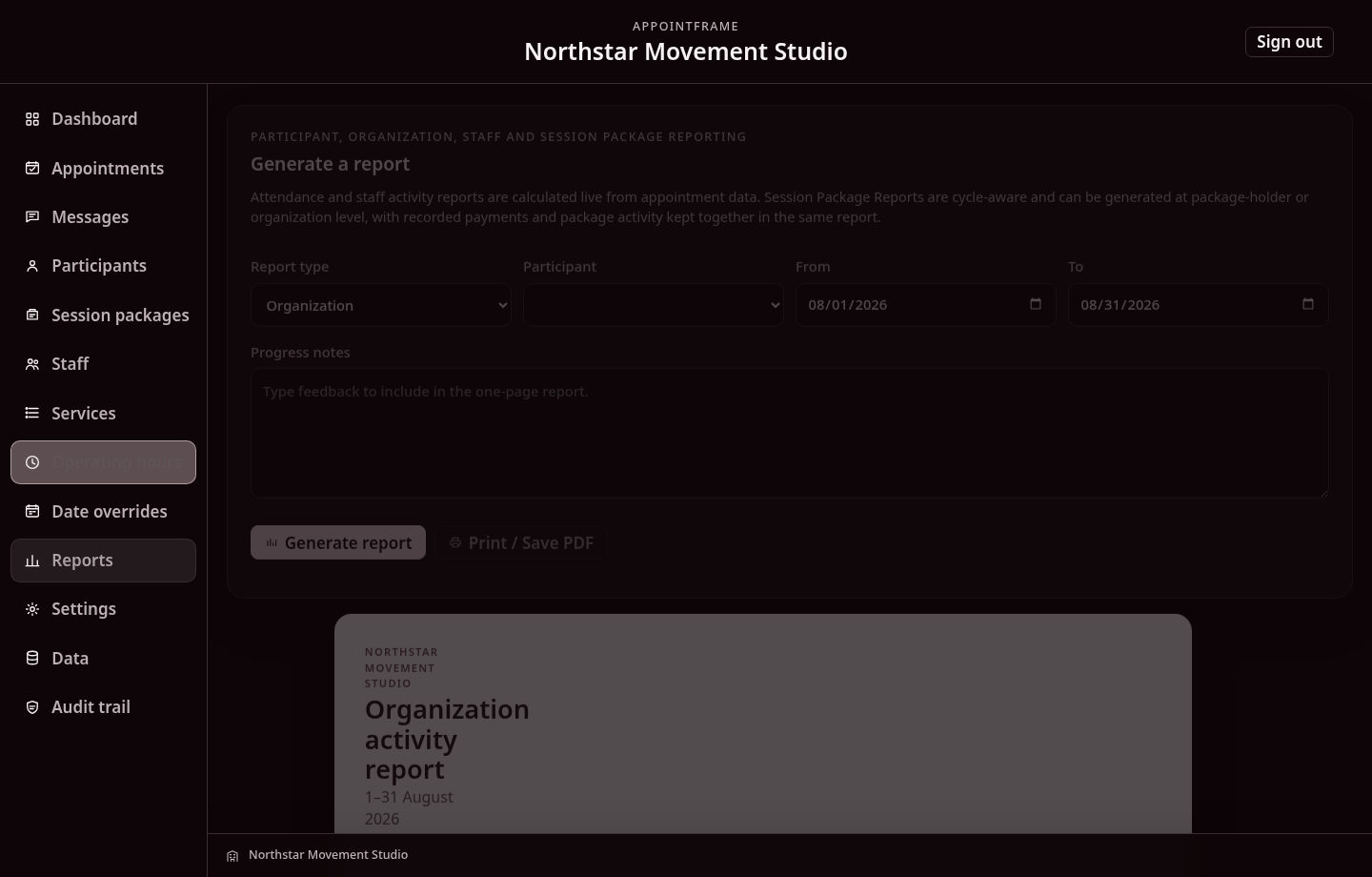
Current report families include Participant activity, organization activity, Staff activity and Session Package holder/series/cycle reporting.
Location / Meeting can be used as a filter. It narrows the records but does not become the report clock. Participant-specific output uses Participant-local interpretation; Staff-specific output uses Staff-local interpretation; organization-level output keeps the relevant appointment/recipient timezone semantics rather than forcing browser/server time.
The From and To controls are kept together as one date-range unit. On desktop the filters use a compact control height; touch/mobile layouts retain full touch targets.
Package reports keep package value, payments and adjustment/credit effects conceptually separate and can retain Package → Cycle context. Reports can be printed/saved to PDF and delivered through supported Email/WhatsApp report routes where enabled.
15. Settings overview
Settings is split into focused categories:
- General;
- Locations & Online Meetings;
- Booking;
- Integrations;
- Notifications;
- Message Templates;
- Branding;
- Administrator.
Application settings describe business behavior. Provider credentials such as SMTP/WhatsApp secrets remain deployment infrastructure and are not stored as ordinary administrator settings.
15.1 Settings → Integrations
Calendar connections are controlled intake connections. AppointFrame remains the system that decides whether an external event becomes an operational appointment.
- Google Calendar and Outlook / Microsoft 365 Calendar are both supported when the deployment has the required provider configuration.
- Administrators connect the provider, review events, map AppointFrame context, validate and then import.
- Imported events are created only after Participant, Service, Location/Meeting, Staff and package context has been resolved and validated.
- A later source-calendar change is surfaced for review; it does not silently reschedule or cancel the AppointFrame appointment.
16. Settings → General
General contains organization identity, public/business references, Organization timezone, default currency and configurable Generic terminology.
The Organization timezone is an explicit business rule and must not be inferred from the browser/server clock. Default currency is a creation/defaulting value; an existing package cycle keeps its frozen currency/rate state.
16.1 Locations & Online Meetings
The Locations settings area maintains physical Locations and online meeting endpoints used by Service Location Offerings. A physical Location can carry its address/details, timezone and default currency context. An Online Meeting is not forced into a physical Location. These master values feed scheduling and notification context; exact Offering configuration remains the authoritative Service + Location/Meeting entitlement.
16.2 Location Resources (Unified)
Administrators can define physical Resources such as rooms, chairs or equipment at a Location and associate them with appropriate Service Offerings. Active and eligible Resources can be used when booking or managing appointments and Group Sessions; recurring schedules can also carry Resource context. If a Resource is deactivated, removed or no longer mapped to the relevant Offering, affected future bookings and recurrence plans can appear for review while past sessions remain intact.
17. Settings → Booking
Generic booking settings control external booking and secure Participant actions.
17.1 Public AppointFrame address
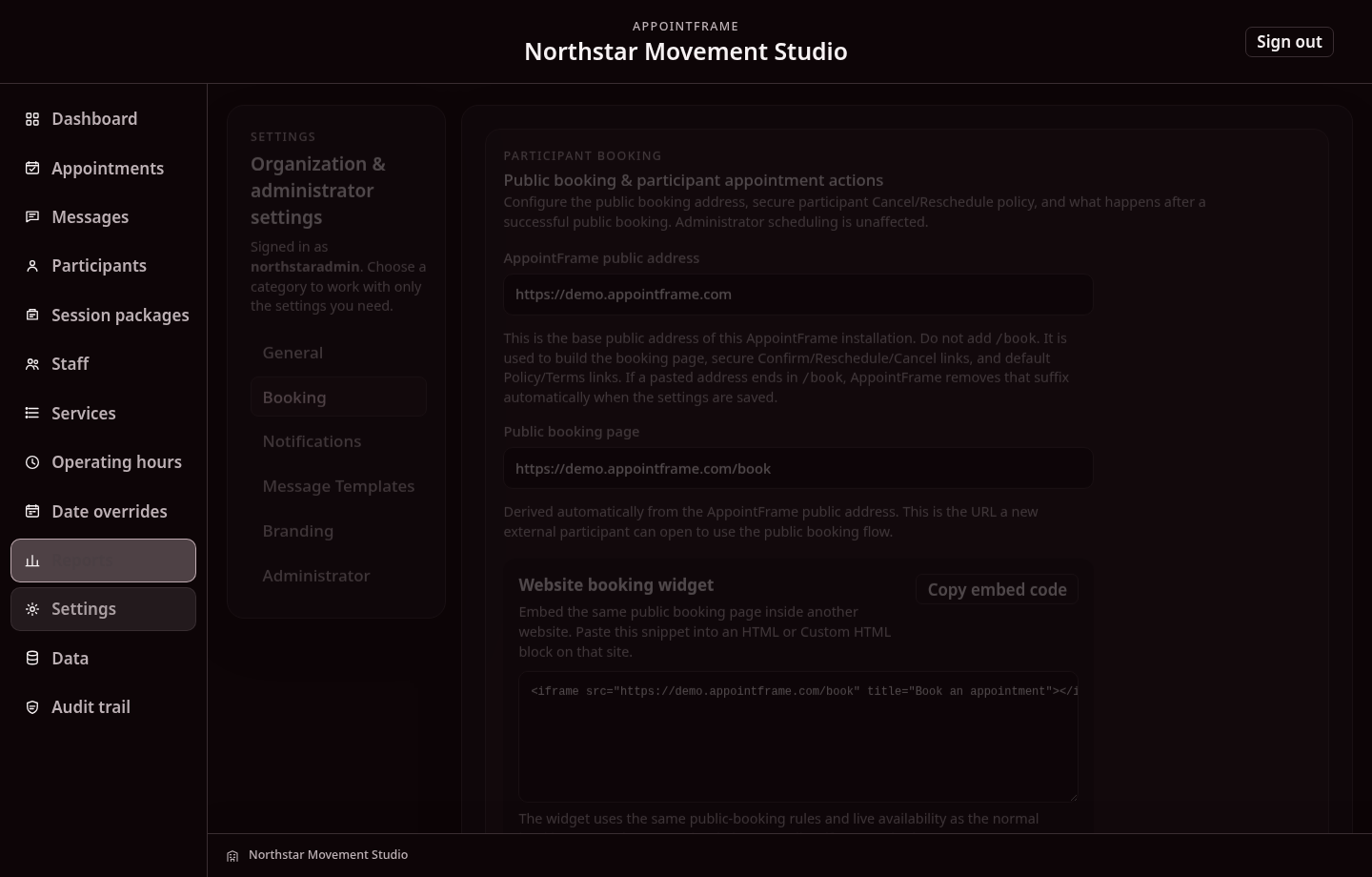
Set the public base address of the AppointFrame installation. AppointFrame derives the /book address and uses the base address to build secure action links.
17.2 Website booking widget
AppointFrame can produce an iframe snippet that embeds the same public booking page into another website. The widget does not create a second scheduling engine; it uses AppointFrame’s live availability.
17.3 Participant cancellation and rescheduling
Generic supports both actions when enabled.
For each action you can configure a cutoff in hours before the appointment. The server rechecks the policy at the time the secure action is used, so an old link cannot bypass a newer cutoff.
Administrator scheduling is unaffected by these client-action settings.
17.4 Post-booking action
After successful public booking, the organization can:
- show the AppointFrame confirmation;
- return to the organization website;
- redirect to another configured page.
18. Settings → Notifications and WhatsApp Utilities
Notifications controls Email/WhatsApp routing, WhatsApp template configuration and reminder timing. Client and Staff routes are configured separately.
For a supported notification to be sent, the organization-level route and the recipient-level preference must both allow that channel. WhatsApp also requires the corresponding Utility to be configured and enabled.
Fresh-install safety: guided first-time setup initializes Organization-level Client/Staff Email and WhatsApp routes, appointment reminder automation and WhatsApp Utilities OFF. Existing installations keep their stored settings. Deployment capability only means the server is technically able to use that channel; the Organization must still enable the relevant route intentionally.
Deployment capability is an outer gate: NOTIFICATION_EMAIL_ENABLED and NOTIFICATION_WHATSAPP_ENABLED default to enabled when absent. Effective delivery requires deployment capability × organization route × recipient preference/eligibility. When a deployment channel is disabled, the UI shows its controls unchecked and disabled while retaining the stored business preference for a later re-enable. Secure client-access magic-link Email is intentionally independent of the notification Email gate.
18.1 Client and Staff notification channels
The Client Notifications matrix and the Staff Notifications matrix are separate organization-level controls.
- Client routes cover supported booking, reschedule, cancellation, reminder, package, report and manual communication events.
- Staff routes cover Appointment assigned, Appointment updated, Appointment unassigned, Appointment cancelled and the consolidated Session notes reminder.
- Each Staff member has independent Email and WhatsApp preferences for those operational events under Staff → Notifications, plus an optional session-notes reminder-time override. The Organization default time is interpreted in the Organization timezone; a Staff-specific override is interpreted in that Staff member's configured timezone.
When an appointment keeps the same Staff member but its Service, date, time or session mode/location changes, the Staff member receives the Appointment updated route. When the Staff member changes, the previous Staff member receives Appointment unassigned and the new Staff member receives Appointment assigned with the final appointment details. AppointFrame deliberately does not send an additional Updated message for the same reassignment.
No automatic 24-hour Staff WhatsApp appointment reminder is sent by this model. Session notes use a separate consolidated reminder that runs only when notes are outstanding.
18.2 Appointment reminder actions
The Generic appointment reminder has one fixed action contract; there is no administrator-selectable reminder-action mode.
- Confirm - WhatsApp Quick Reply handled immediately in chat.
- Cancel - WhatsApp Quick Reply handled immediately in chat.
- Reschedule - Website URL button that opens the existing secure AppointFrame rescheduling flow.
All three actions continue to respect the current client-action validity rules and cutoffs. Native WhatsApp Book / Group Flows are separate from this reminder.
18.3 WhatsApp template controls
The WhatsApp template matrix lets an administrator enable or disable each supported message type, choose the Meta template name, and define the body-parameter order expected by that approved template. The current Generic defaults are:
| Message type | Generic Meta template default |
|---|---|
| Appointment reminder | af_appointment_reminder_v3 |
| Group Session reminder | af_group_session_reminder_v3 |
| Participant cancellation | af_appointment_cancelled_client |
| Staff cancellation | af_appointment_cancelled_staff |
| Staff assignment | af_appointment_assigned_staff |
| Staff appointment update | af_appointment_updated_staff |
| Staff unassignment | af_appointment_unassigned_staff |
| Daily Staff session-notes reminder | af_session_notes_reminder_staff |
| Weekly package progress - fixed | af_package_weekly_progress_fixed |
| Weekly package progress - open-ended | af_package_weekly_progress_open |
| Client progress report | af_client_progress_report |
| Policy review | af_policy_review |
| Package commencement | af_package_commencement |
| Package completion | af_package_completion |
| Package expiry reminder | af_package_expiry_reminder |
| Package payment reminder (legacy fallback) | af_package_payment_reminder |
| Package Payment Statement · document | af_package_payment_statement |
| Complimentary-session notice | af_package_complimentary_notice |
| Refund proposal | af_package_refund_proposal |
| First-session thank-you | af_first_session_thank_you |
| General announcement (Meta Marketing) | af_general_announcement |
The V3 Appointment and Group reminder bodies use eight body parameters, including the actual Location / Meeting and participant-facing appointment information. The parameter source package_description is retained only as a compatibility alias and now resolves to the same full Package Label as package_name; AppointFrame does not strip or add the word “Package”. Approved Meta template wording must therefore treat that variable as the complete phrase.
The three Staff appointment Utilities use 7 body parameters for Assignment, 11 for Appointment Update, and 6 for Unassignment. The consolidated session-notes reminder uses 3 body parameters plus the approved dynamic Website URL button. Payment Statement uses a Document header plus 4 body parameters. Their parameter rows are configurable in the same way as the other Utilities; switches can remain disabled while the corresponding Meta templates are pending approval.
The Appointment reminder and Group Session reminder rows also expose Message for participant as an available parameter source. After an approved replacement Meta template is active, the administrator can change the template name and parameter order in Settings without changing the scheduling code, provided the approved button/header contract remains compatible.
Session location/mode values are derived from the Service meeting mode rather than inferred from the Service name.
Saved Settings values override the code defaults for the running installation. A template name may therefore be changed without a Node restart, provided the configured parameter rows match the approved Meta template. Provider credentials such as the Cloud API access token and Phone Number ID remain server infrastructure configuration.
Use Restore defaults only when you intend to return to the current Generic defaults shown above.
18.4 Reminder timing
Set the organization-wide appointment reminder lead time, normally 24 hours. This is one lead time, not a sequence of reminder campaigns.
Session notes have a separate optional consolidated-reminder setting. The organization default time starts at 18:00; an individual Staff member may override that time under Staff → Notifications. No reminder is sent for that Staff member when there is nothing from the current day awaiting notes.
19. Settings → Message Templates
Message Templates contains separate Email template sets for Clients and Staff.
Client Email contains the supported client-facing lifecycle, package, report and manual communication templates, including the editable Session package payment statement template.
Staff Email contains the operational templates for Appointment assigned, Appointment updated, Appointment unassigned, Appointment cancelled and the consolidated Session notes reminder. Each Staff event uses its own Staff template; AppointFrame does not reuse the Client confirmation/reschedule/cancellation wording for Staff.
The Staff Appointment Updated template presents the previous appointment and updated appointment so Service, date, time and location/mode changes are explicit. Assignment shows the final appointment details, Unassignment tells the previous Staff member which appointment has left their schedule, and the Session Notes Reminder supplies the pending-count and secure note-entry link.
For the appointment Confirmation, Reschedule and Reminder Client templates, {{client_message}} is the appointment-specific participant message. If the built-in template is used, an empty message does not leave an empty heading. Payment Statement Email adds the authoritative service-wise reconciliation and attaches the same frozen PDF snapshot used by Download/WhatsApp.
For a supported Email template:
- choose the Client or Staff template type;
- edit Subject and HTML body;
- Preview;
- Save or restore the AppointFrame default.
WhatsApp Utility body content is constrained by the approved Meta template and the Utility parameter mapping configured under Notifications.
20. Settings → Branding
Branding supports:
- organization logo;
- favicon;
- Dark/Light application appearance;
- accent color;
- custom application font where supported;
- restore/default actions.
Use Generic/demo assets in demonstrations and documentation, never Live customer data.
21. Settings → Administrator and Client assistance
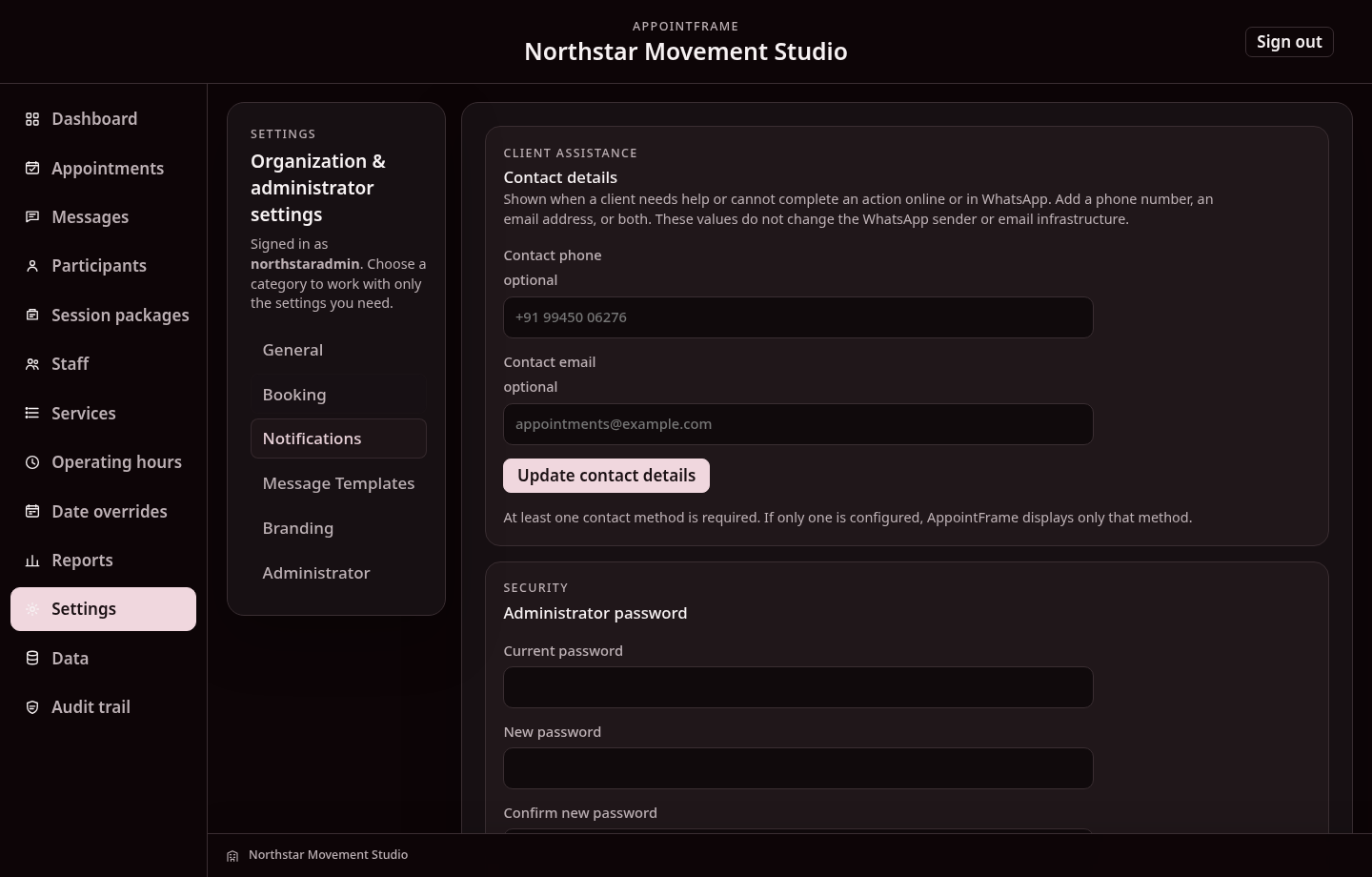
The Administrator category contains two conceptually separate areas:
21.1 Client assistance contact details
Optional phone/email shown when AppointFrame tells a client to contact the organization for assistance.
At least one contact route should be supplied when the workflow needs assistance messaging. These fields do not change the WhatsApp Cloud sender or provision an SMTP mailbox.
21.2 Administrator password
The administrator changes the privileged application password here. Changing it invalidates existing administrator sessions according to the security implementation.
Client magic links, WhatsApp verification codes and WhatsApp Flows never create an administrator session.
22. Public booking for a new external Participant
The public booking page is separate from administrator access.
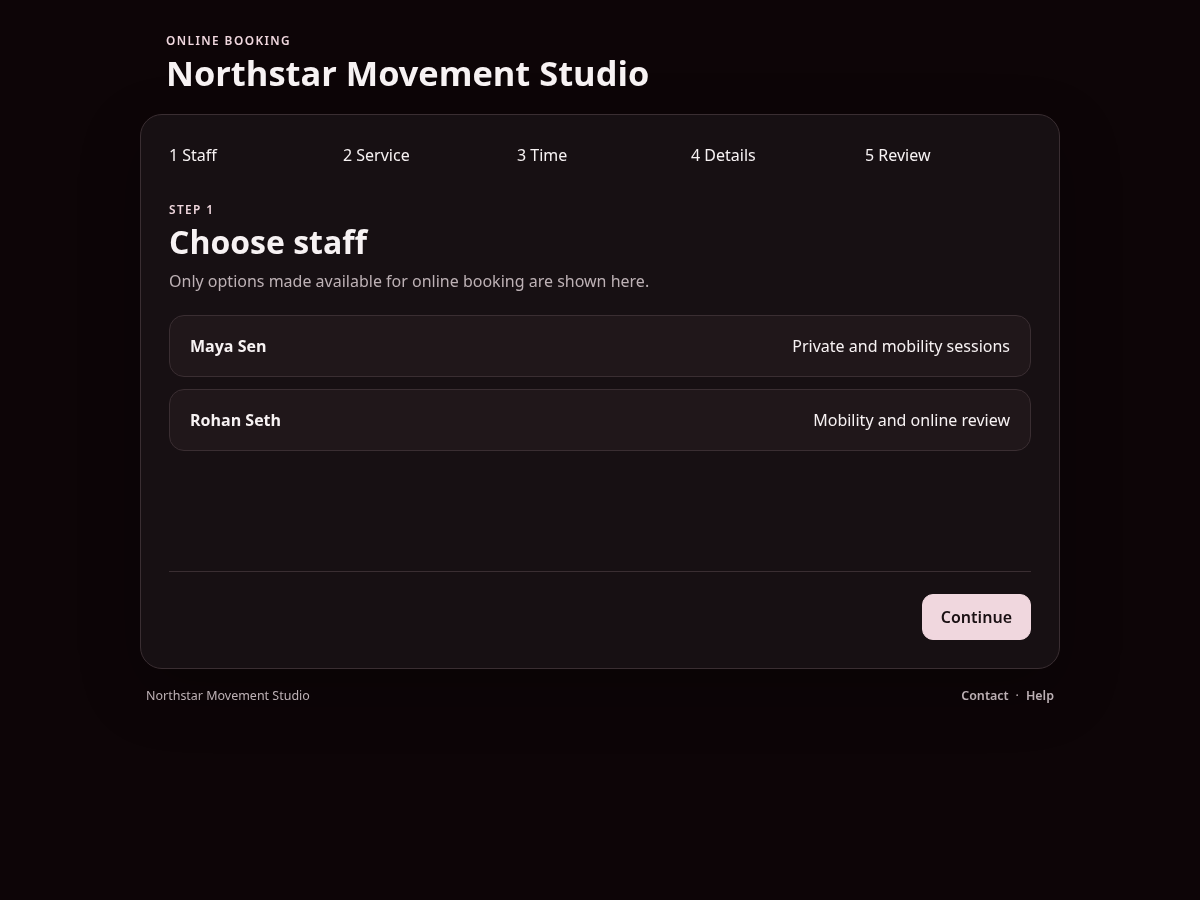
Only Staff and Individual Services explicitly available for public/client booking are offered, and only valid times from the scheduling engine are shown.
Typical flow:
- Choose Staff.
- Choose Service.
- Choose date/time.
- Enter details.
- Review.
- Book.
The selected time is rechecked on submission.
23. Secure Participant access for existing clients
Existing Participants can use secure client access when the deployment master switch and authentication channels are available.
Authentication options can include:
- Email secure access link;
- WhatsApp verification code.
No normal password is required for the client.
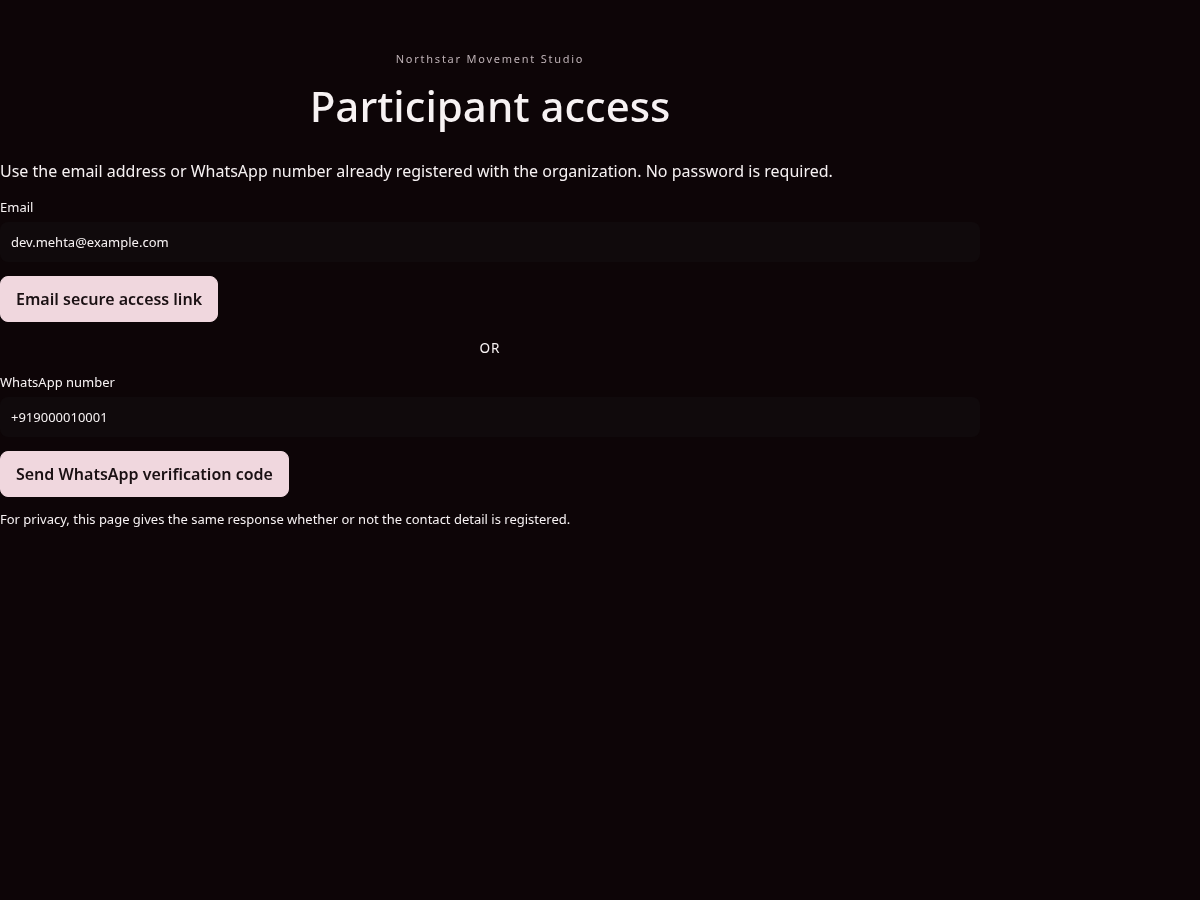
For privacy, the request page gives a neutral response rather than confirming whether a supplied email/phone is registered.
23.1 What a verified Participant can do
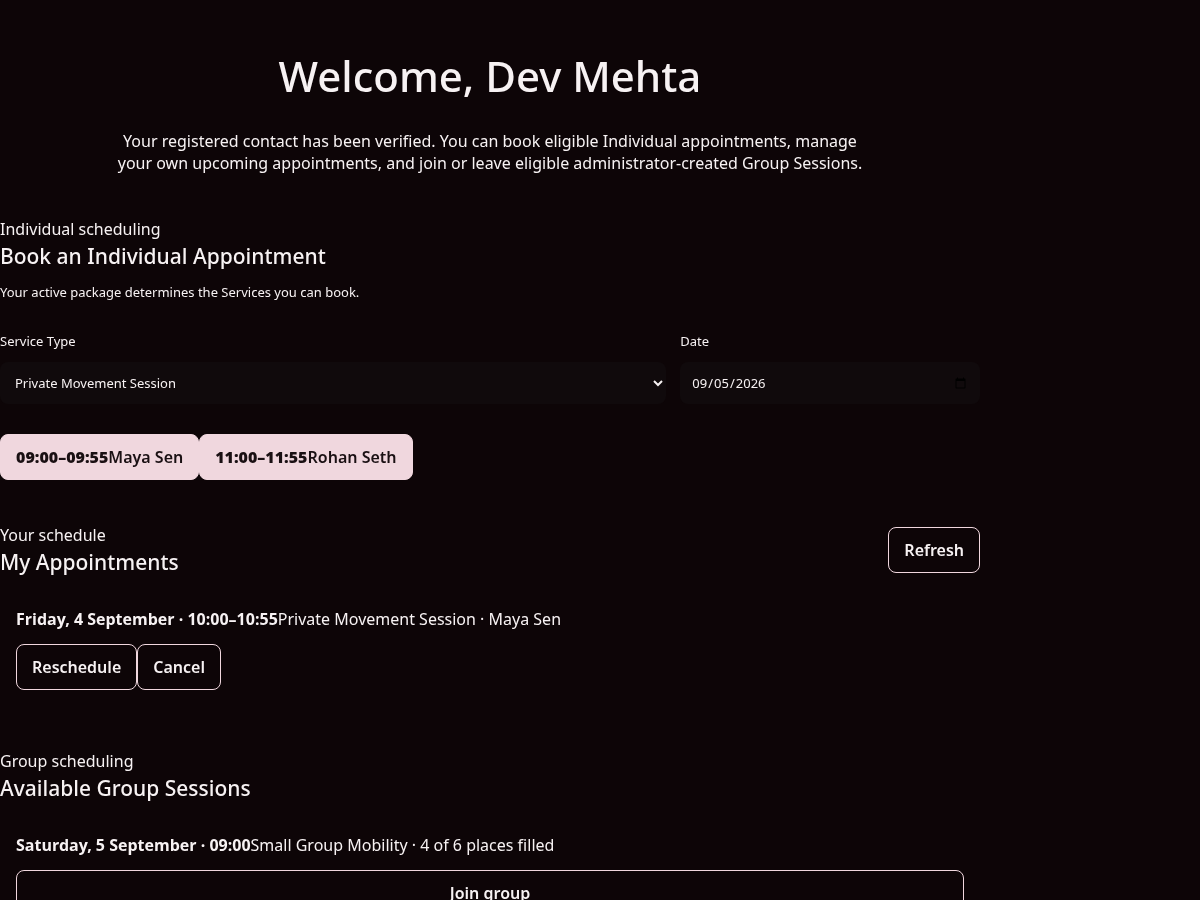
Generic secure client access is deliberately narrow. A verified Participant can:
- book an eligible Individual appointment;
- view their own appointments;
- Confirm where the action model requires it;
- Reschedule an eligible Individual appointment according to Settings/cutoff, choosing another valid time with the same Staff member or another eligible Staff member;
- Cancel an eligible Individual appointment according to Settings/cutoff;
- view eligible administrator-created Group Sessions;
- join/leave an eligible Group Session.
- request a Session Package for themselves and, if permitted by the administrator, selected associated Participants;
- review their own package request status and withdraw a pending request.
Clients can initiate package requests, but they cannot administer or activate Session Packages, adjust payment or policy terms, open administrator Settings, browse Participants/Staff/reports/data tools, or view another person's unrelated records. Client package requests never create recurring schedules automatically.
23.2 Request a Session Package through secure access
- Sign in with the supported email magic link or configured verification method.
- Open the package request area and choose a package label and fixed or open-ended basis.
- Select from the active public Service + Location Offerings. For fixed packages, set the package size and validity, then allocate sessions across the selected Offerings.
- Select yourself and/or the active Participants the administrator has linked to your payer identity. The payer does not have to attend.
- Review the estimated total (for fixed requests), current policy summary and request details.
- Submit the request. It remains Pending while the administrator reviews members, external payment arrangements and policies. There is no online payment checkout.
- View status or withdraw the request while it is Pending. Once approved, normal package eligibility rules govern future bookings.
If no public Offerings appear, ask the business to check Service public visibility, Offering/Location active state and rates. Clients cannot override those administrative settings.
24. WhatsApp client self-service Flows
When enabled and published, AppointFrame supports native WhatsApp client Flows backed by the same client-self-service rules.
The public command vocabulary is intentionally small:
- Book - Individual client booking Flow.
- Group - Group Session join/leave Flow.
The sender number is resolved against active Participant records. If exactly one Participant matches, AppointFrame uses that identity directly. If a verified shared number maps to more than one Participant, the Flow can ask who is scheduling while restricting choices to those verified candidates.
An unknown number receives neutral assistance guidance rather than availability, Participant names or account creation.
The WhatsApp Flow never creates a Group Session.
25. Data workspace
Data is split into:
- Overview;
- Export;
- Historical Records;
- Corrections & removal.
Migration is a separate primary workspace for onboarding an existing business from an appointment CSV; it is described in the next chapter.
25.1 Overview and backups
Use Download application data backup before major changes and Create database backup now when a current DB backup is needed and background backup is configured.
25.2 Export
Choose a From/To range and download CSV for the selected appointment data.
25.3 Historical Records
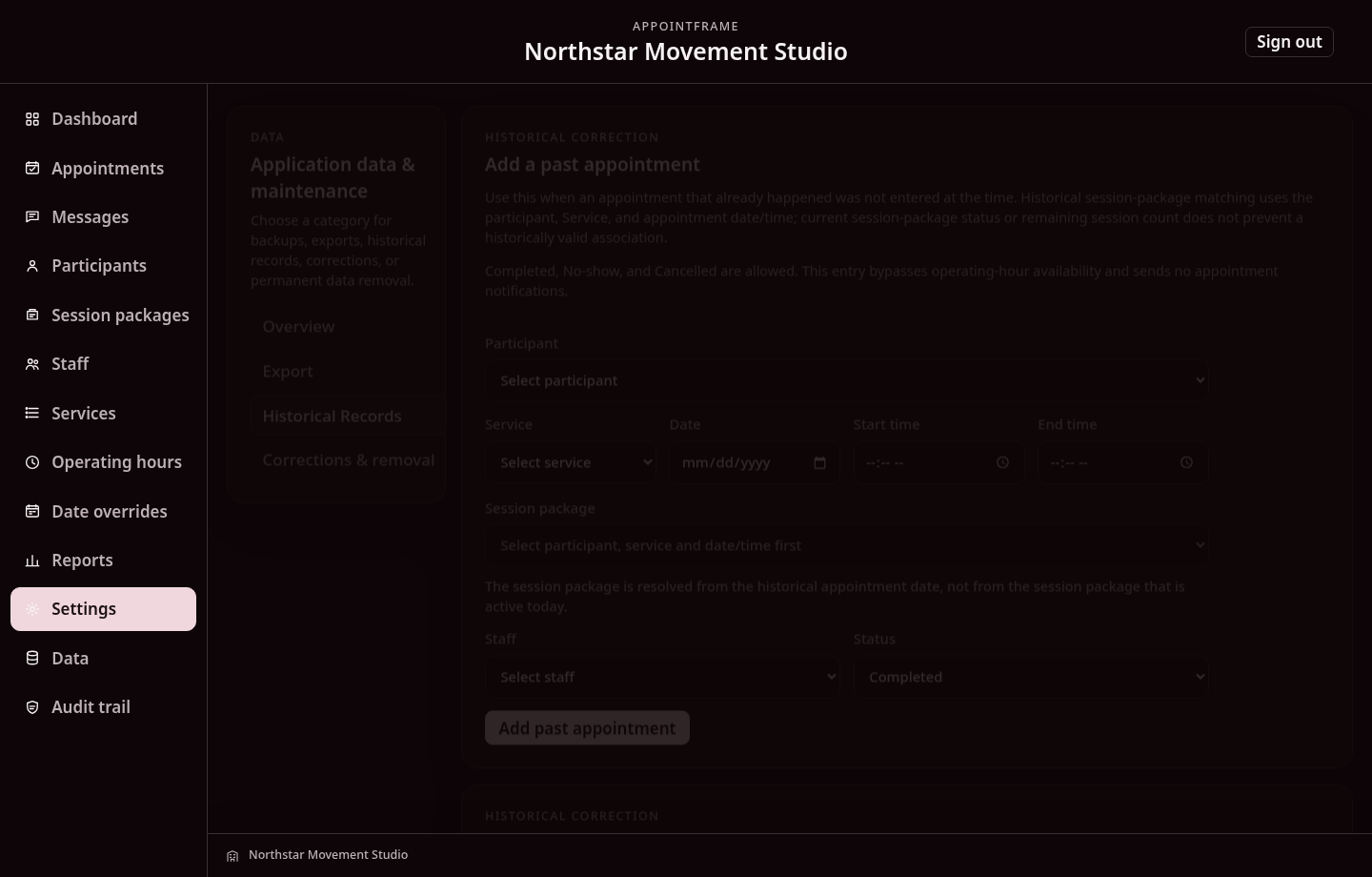
Historical tools are for an existing AppointFrame installation and include:
- add a past appointment that was missed from the system;
- resolve the Session Package using the historical appointment date;
- repair a historical package association;
- analyse existing unlinked history and build a read-only historical reconstruction preview;
- apply controlled historical Service/Staff correction while keeping appointment date/time immutable.
Historical reconstruction uses the same package counting/accounting rules as normal AppointFrame. A reconstructed closed cycle preserves its actual historical consumed length even when that differs from the package's nominal cycle size. Existing active/current package records are protected; historical cycles can be inserted before them without replacing the current package identity or contents.
Historical entry/reconstruction is not treated like a new future booking and does not trigger the normal confirmation/reminder lifecycle. New-customer CSV onboarding belongs under Migration.
25.4 Corrections & removal
Use the controlled correction/removal tools for:
- correcting Service/Staff on a past appointment where valid;
- removing one erroneous past appointment;
- permanently deleting one Participant’s client-specific data.
These operations require stronger confirmation because they change retained history.
26. Migration
Migration is the controlled onboarding workspace for bringing an existing operation into AppointFrame without bypassing normal package and scheduling relationships.
The current Generic build accepts an Appointment CSV as the primary source. Only start date/time, end date/time and Participant/client name are required to stage the file; richer Service, Staff, package, cycle, status and source-ID columns are preserved and used when available.
26.1 Choose the migration path
- Current-state onboarding - fastest go-live path. Establish Participants, Services, Staff, active packages/opening counts and payments, and future appointments.
- Full historical migration - reconstruct historical appointments and package periods/cycles so retained history remains useful for package reporting, Participant history, Service usage and Staff activity.
- Historical correction - opens the Data historical tools for an installation that already contains AppointFrame records needing reconstruction/correction.
Migration Projects are persistent, so a large source can be resolved and reviewed over multiple sessions before anything is committed.
26.2 Upload - Source data
Create a project, confirm source timezone/date order, upload the Appointment CSV and stage it. Staging is isolated from operational AppointFrame data. Large row sets use server-side pagination.
Ambiguous date formats are resolved through source configuration rather than silently guessed.
26.3 Resolve - Business data
Resolve distinct source Participants, Services, Staff and statuses in bulk. Existing records can be reused and missing records can be staged for creation during migration. One resolution applies to every source row using that value.
Defaults can be used for genuinely blank source values. Historical appointment date/time and Participant identity remain source facts; controlled historical Service and Staff corrections are explicit exceptions.
26.4 Packages - Opening state or historical reconstruction
For Current-state onboarding, stage the active package position that should exist at go-live, including holder/payer, Participants, Services, frozen rates/allocations, cycle number, package size/complimentary rules, opening completed count, dates, payment arrangement and opening amount already received. Future Scheduled appointments are assigned only to valid matching packages.
For Full historical migration, define historical package periods and reconstruct cycles through the authoritative AppointFrame package engine. Source Package Series/Cycle identifiers and cycle numbers are used as reconstruction evidence when supplied. Different historical cycles may close at different actual sizes.
Historical consumption may be marked Historically accounted when reliable old payment records are unavailable, preventing reconstructed past consumption from becoming false current debt.
26.5 Review - Preflight
Every staged appointment receives an explicit disposition such as Ready to import, Duplicate skipped, Explicitly excluded, Ignored for current-state onboarding, Unresolved or Conflict. Exact duplicates can be skipped or deliberately included; exclusions require a reason.
Review produces a fingerprint of the migration decisions. Commit remains unavailable until required package/reconstruction review is complete and blocking unresolved/conflict conditions are cleared.
26.6 Commit - Protected write
The final action is Back up & commit migration. AppointFrame creates a fresh database backup, rechecks the Review fingerprint and writes the migration in one transaction. A failed write rolls back, and the same reviewed project cannot be committed twice.
When historical cycles are inserted ahead of an existing current package, the existing package ID and stored contents are preserved; only its cycle numbering can shift forward.
Migration never sends appointment, Email or WhatsApp notifications. After successful commit the Migration Project becomes read-only evidence.
Interaction with first-time setup: a Migration commit can create or reuse Participants, Services, Staff, Locations/Offerings and Packages. The onboarding checklist re-evaluates those real records automatically. Migration does not mark Initial Setup complete and does not create Organization Operating Hours, so the administrator still reviews the checklist and finishes setup explicitly.
27. Audit Trail
The Audit Trail is the chronological business/operational record.
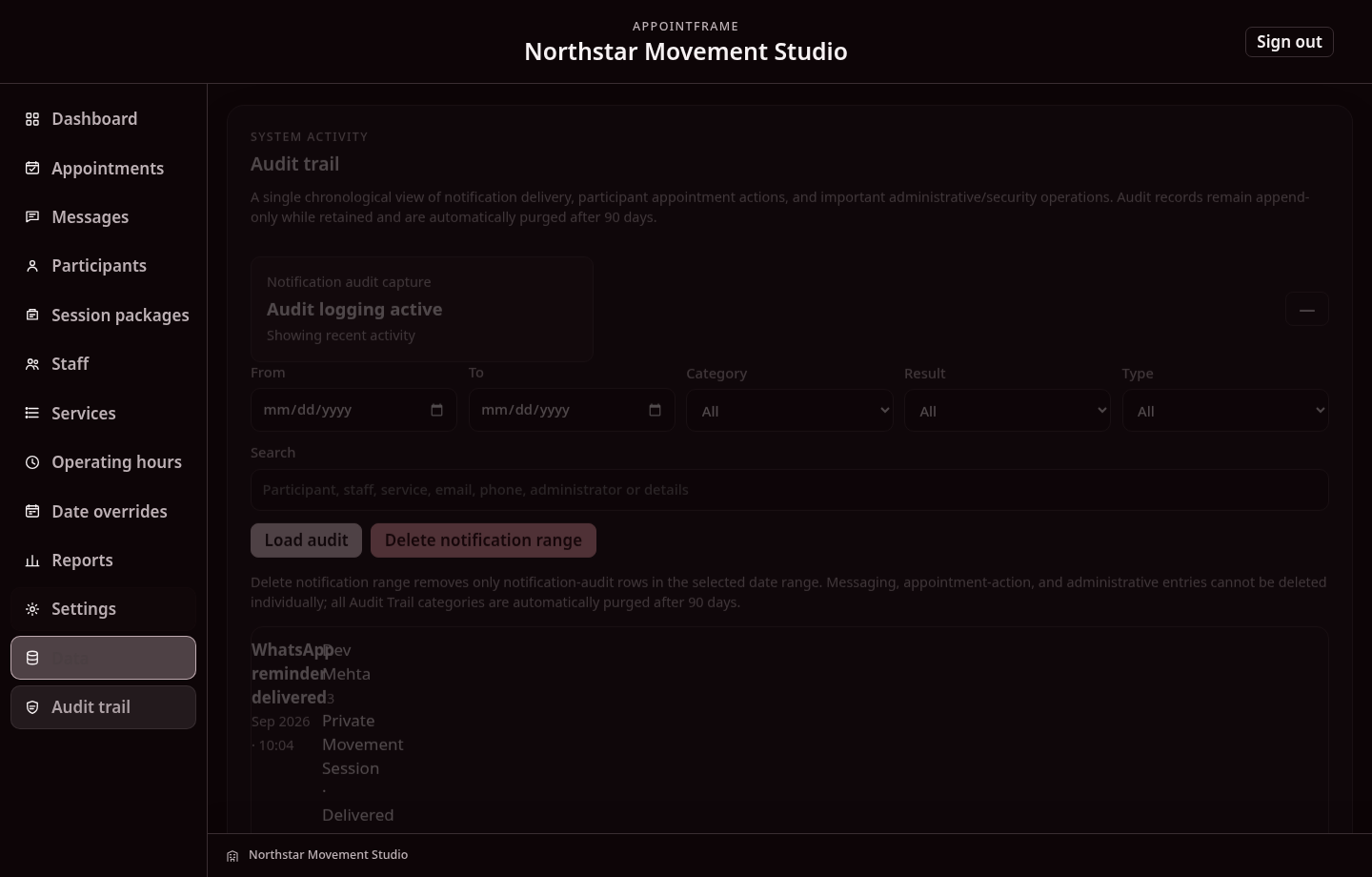
Use filters for:
- From/To date;
- category;
- result/delivery state;
- event type;
- text search.
Typical events include appointment lifecycle actions, notification attempts/results, WhatsApp provider states, package activity and administrative changes.
The Audit Trail is not the same as the technical diagnostic log.
27.1 Scanning the Audit Trail
The Audit Trail is displayed as Date → Client/Subject → Events. Within each date, client-related events are grouped under that Participant; non-client events are grouped under the relevant subject such as administration, Staff, Service, package or system activity. This keeps the chronological evidence intact while making a busy day easier to scan.
The existing date/category/result/event/search filters continue to operate on the underlying audit records. Grouping is a presentation layer and does not merge or discard audit events.
28. Technical diagnostic log
For server/application troubleshooting, AppointFrame also writes diagnostic.log in the application directory by default.
It records technical information such as:
- request IDs;
- runtime exceptions/stack traces;
- WhatsApp provider errors;
- Flow encryption/decryption problems;
- background-service failures.
Secrets such as passwords, tokens, cookies, OTPs and private keys are redacted by the logger.
The log rotates automatically at about 5 MB and retains numbered historical files. This is normally a server-administrator/developer troubleshooting tool rather than a daily application workflow.
29. Email, calendar and WhatsApp behavior
Operational Email requires SMTP infrastructure, deployment Email capability, the organization route and recipient preference/eligibility. Appointment date/time is rendered for the recipient's configured timezone and includes the actual Location/Meeting where the message contract supports it. Package communication uses the complete Package Label verbatim.
Secure client-access magic-link Email remains available independently of NOTIFICATION_EMAIL_ENABLED because it is an authentication path, not a notification route.
Calendar
Where iCalendar is included in operational Email, the appointment is represented as its authoritative instant/timezone-aware event so the recipient calendar can render it correctly.
External calendar intake is separate. Under Settings → Integrations, connect Google Calendar or Outlook / Microsoft 365 Calendar, then use Appointments → Calendar Sync to review source events, map AppointFrame context, validate them through the booking engine and import only Ready rows.
A later source-calendar change is reviewable; AppointFrame does not silently reschedule/cancel the imported appointment.
WhatsApp Cloud API is the automated provider path. Operational delivery requires deployment WhatsApp capability, the organization route, recipient preference/eligibility and the enabled Utility configuration. Generic Individual reminder actions remain Confirm quick reply, Cancel quick reply and Reschedule Website URL. Group reminder behavior remains separate.
V3 reminder parameters carry Service, Date, Time, Staff and actual Location/Meeting. Package parameters use the full Package Label; package_description is only a compatibility source name and no longer shortens the label. Payment Statement WhatsApp uploads the same frozen PDF snapshot as a Meta Document before sending the Utility.
Staff appointment messages are event-driven (Assigned, Updated, Unassigned, Cancelled). Session Notes uses its own consolidated daily reminder with a secure dynamic URL.
30. Common workflows
Create a new Individual Service and make it externally bookable
- Settings → Locations & Online Meetings: confirm the required destination exists.
- Services → New service: set name, duration, Individual format and Active.
- Add one or more exact Service + Location/Meeting Offerings with currency/rate/availability as required.
- Set Participant booking availability for the eligible Offering.
- Assign eligible Staff and review their Location scope/capacity.
- Test administrator and public/client booking.
Create a Group Service and one or many Group Sessions
- Create a Service with Group format and configure its eligible Location/Meeting Offerings.
- Set capacity, optional minimum-participant rule and assign eligible Staff.
- Appointments → Add group session.
- Choose Service, Location/Meeting and Staff once.
- Select one or many arbitrary date/time slots. Add Participants if required, or leave the shells empty.
- Choose Create group session(s). Valid sessions are created immediately; any blocked selection reports its reason.
For a repeating Group pattern, create a Recurring schedule → Group session instead.
Create a Session Package
- Session packages → New package.
- Enter the descriptive Package Label and choose holder/payer plus progress recipient.
- Choose fixed or open-ended basis and one package currency.
- Select the exact eligible Service + Location/Meeting Offerings and frozen rates.
- Configure validity, complimentary sessions and package-consumption policy as applicable.
- Add eligible members and payment arrangement.
- Create the package and use its card for lifecycle, Payment Statement and communication actions.
Client package request and administrator approval
- In Participants, the administrator sets the client's package-request scope to self only or self plus explicitly linked Participants.
- Enable the public visibility flag only for Service Types intended to be available in client-facing requests, and configure active Offerings/Locations and rates.
- The verified client opens secure access, selects their permitted participants and public Offerings, reviews policy information and submits a request.
- An administrator opens Session packages → Client package requests, reviews the pending request and verifies participants, public Offering/rates, external payment arrangement and package policies.
- Approve to create the real package, or reject with a review note. Only an approved, eligible package can be booked against.
The system records agreed/received payment details and the outstanding balance, but does not perform the payment transaction.
Resolve an instructor, client, Service or Resource change
- Save the authorized deactivation, package pause, Resource availability change or instructor time off.
- Review Attention required for affected upcoming individual or Group bookings and recurring rules.
- Inspect the specific client, instructor, Offering, Package or Resource association responsible for each issue.
- Reassign, reschedule or otherwise resolve only what is appropriate using the supported appointment and recurrence controls.
- Verify that historical appointments and unrelated participants were not rewritten.
Do not expect the system to automatically resolve a conflict. Recording emergency Staff time off is permitted even if it creates scheduling work.
Schedule one or many Individual appointments
- Appointments → Add appointment.
- Choose Participant, Service, exact Location / Meeting Offering and Staff once.
- Select an available date and time. Continue selecting other times on the same or different future dates as needed.
- Review the Appointments to create list; remove/review any selection before committing.
- Choose Create appointment(s).
Valid rows are persisted immediately using best-effort validation. Each row independently rechecks package capacity, Offering availability, timezone-aware hours/overrides, Staff limits and conflicts.
Create a recurring schedule
- Appointments → Recurring schedules → New recurring schedule.
- Choose Individual appointment or Group session.
- Set the scheduling context and explicit Starts on date.
- Choose weekly/every-N-weeks or monthly recurrence and define the weekday/time or monthly pattern.
- Choose the ending condition and review the next planned occurrence preview.
- Create the schedule. No seed appointment is created.
Use Pause/Resume, Edit future, Skip occurrence where available, or End from the recurring schedule management list.
Review and import external calendar events
- Settings → Integrations: connect a supported calendar read-only.
- Appointments → More actions → Calendar Sync.
- Choose provider/calendar/date range and review current source events.
- Map Participant, Service, Location / Meeting, Staff and eligible Package; use common mapping when appropriate.
- Validate selected rows and import only Ready events.
- After import, manage the appointment normally in AppointFrame.
Review and send a Payment Statement
- Open Session packages and use the package three-dot menu.
- Choose Payment statement.
- Review the service-wise reconciliation and current amount due.
- Use Preview PDF to inspect the exact frozen document snapshot.
- Choose Download, Email, WhatsApp or Both. Channel availability still respects organization/Participant preferences and WhatsApp Utility enablement.
Generating or sending the statement does not record a payment.
Complete Staff session notes
- When an appointment completes, its internal Session Notes entry becomes eligible immediately.
- If notes remain outstanding, the enabled daily reminder sends one consolidated link at the organization default time or the Staff member's override time.
- Open the signed link and review Today / Earlier pending appointments.
- For each appointment, record what was covered, what went well, issues/observations and next-session focus/actions.
- Save each appointment independently. The note is retained with the appointment and remains internal.
Temporarily close one date
- Date overrides.
- Select the date.
- Choose Closed all day.
- Save the exception.
- Verify future availability if external booking is enabled.
Back up before a major change
- Data → Overview.
- Download application data backup and/or create a DB backup.
- Keep the backup until the change is verified.
Migrate an existing operation
- Open Migration and choose Current-state onboarding or Full historical migration.
- Stage the Appointment CSV and confirm source timezone/date interpretation.
- Resolve distinct Participant, Service, Staff and status values.
- Stage the current package opening state or reconstruct historical package periods/cycles.
- Open Review, resolve every blocking item, duplicate and exclusion, and confirm preflight.
- Use Back up & commit migration when ready; do not interrupt the commit.
- After commit, verify Participants, packages/cycles, appointments, Reports and Audit Trail.
31. Mobile and tablet use
Responsive behavior is breakpoint-based rather than tied to one phone model.
- the desktop sidebar becomes a hamburger navigation drawer on compact layouts;
- Sign out moves into that drawer while Search and the global + remain available in the compact header;
- the current section/workspace is shown in the context bar;
- Appointments tabs remain on one line and use shorter labels such as Recurring/Saved where needed;
- Admin Calendar Week becomes a vertical agenda on phones/compact tablets instead of squeezing seven timeline columns; agenda typography and cards scale for readability;
- secure Staff Week view follows the same agenda principle, while Day remains the detailed timeline;
- Planner primary actions stack as full-width controls on narrow screens;
- Add appointment and Add group session dialogs use contained scrolling and keep their primary Create action visible within the viewport/safe area;
- Operating-hours, record tables, Migration progress, recipient lists and other dense controls reflow/stack without requiring page-level horizontal scrolling;
- the same scheduling, Package, availability and permission rules apply at every breakpoint.
Grouped availability editors and Communication History use accordion behavior on all screen sizes: one active day/date group remains open while the others stay compact. On wider screens an expanded weekday spans the available editor width; on phones controls stack without page-level horizontal scrolling.
32. Data safety cautions
- Prefer Deactivate when history should remain.
- The three-dot Delete action is available only for supported records with no protected associations; the server rechecks the conditions before deletion. An unused Service Type still linked to a package or Offering may require the association to be cleared first.
- Do not delete an entity to hide or change the history of an existing appointment. Resolve future conflicts through Attention required and preserve completed records.
- Use destructive Data tools only for intentional corrections/removal.
- Back up before major configuration/schema/deployment changes.
- Do not expose administrator credentials, SMTP passwords, WhatsApp tokens or Flow private keys.
- Sign out on shared devices.
- Never use Live customer data in screenshots, demonstrations or training documents.
33. Basic troubleshooting
A recurring occurrence did not appear
- confirm the schedule is Active and not Paused/Ended;
- check the schedule start date and repeat rule;
- for Individual schedules, check the linked Package is still eligible and open the relevant planner week so matching drafts can be prepared;
- for Group schedules, check Service/Location/Staff remain active and eligible;
- review any recurrence issue shown by the planner/manager.
A time is not available
Check:
- Operating hours;
- Date overrides;
- Staff availability/overrides;
- Staff-Service assignment;
- Service availability/duration;
- package entitlement;
- existing appointment/group conflicts;
- past-time exclusion.
A Participant cannot book through secure access
Check:
- external client access master switch;
- active Participant record;
- verified contact identity;
- active package or explicitly client-bookable Individual Service;
- current availability.
A Staff member cannot be selected for an appointment
- check normal Staff-Service mapping;
- check recurring availability/date overrides and appointment conflicts;
- check the Staff member's overall daily appointment capacity;
- check the selected Service's daily limit for that Staff member;
- use the explicit other-Staff override only when the Staff member is otherwise available and the appointment is intentionally outside the permanent Service mapping.
A Staff session-notes reminder did not arrive
- confirm Session Notes Reminder is enabled at organization level;
- check the organization default reminder time and any Staff override;
- check Staff Email/WhatsApp preferences and contact details;
- for WhatsApp, confirm the approved session-notes Utility is enabled;
- remember that no reminder is sent when that Staff member has no completed appointments from the current day still awaiting notes.
A WhatsApp reminder is failing
Check:
- Participant phone and WhatsApp preference;
- Utility enabled/configured;
- Meta template/provider status;
- Communications retry state;
- Audit Trail;
diagnostic.logfor the exact provider error.
A Flow will not open
Check:
- client Flow access flag;
- correct Flow ID and Draft/Published mode;
- Flow endpoint health;
- Meta App association;
- RSA key/public-key match;
- exact Meta error in
diagnostic.log.
Email does not send
Check SMTP infrastructure, NOTIFICATION_FROM, Participant email/preferences and diagnostic/provider error.
A code deployment appears unchanged
Restart the Node application and hard-refresh the browser if asset cache versions changed.
34. Quick glossary
| Term | Meaning |
|---|---|
| Appointment | One scheduled occurrence with date/time, Service, Staff and Participant context. |
| Service | Reusable scheduling definition; current format is Individual or Group. |
| Group Session | Administrator-created occurrence of a Group Service with bounded capacity. |
| Staff | Person assigned to deliver appointments; not an AppointFrame login role. |
| Participant | Client/customer record used for scheduling, contact and self-service identity. |
| Session Package | Entitlement/payment/progress arrangement tied to eligible completed appointments. |
| Package cycle | One fixed/open package occurrence within a renewable package series. |
| Operating hours | Recurring organization availability. |
| Date override | One-date exception to normal availability. |
| Reminder lead time | Organization-wide number of hours before an appointment when reminder becomes due. |
| WhatsApp Utility | Approved Meta template type configured in AppointFrame’s Utility registry/settings. |
| Manual action required | Reminder state after bounded automatic recovery cannot safely confirm delivery. |
| Payment Statement | Reviewed service-wise Session Package reconciliation with one frozen PDF snapshot used for preview/download/delivery. |
| Session notes | Internal appointment-level Staff record of what was covered, what went well, observations and next-session actions. |
| Daily appointment capacity | Optional overall number of appointments a Staff member may be assigned on one date. |
| Service daily limit | Optional per-Staff, per-Service appointment limit for one date. |
| Audit Trail | Business/operational event history. |
diagnostic.log |
Technical troubleshooting log with request correlation and secret redaction. |
| Explicit multi-date appointment | One or more exact appointments created immediately from one shared Participant/Service/Location/Staff context; dates/times do not need a pattern. |
| Recurring schedule | A standalone weekly/monthly rule with its own start and end behavior. Saving the rule does not create a seed appointment. |
| Recurring occurrence | One date/time produced by a recurring rule. Individual occurrences are prepared as planner drafts; Group occurrences prepare Group Session shells. |
| Calendar Sync | Read-only external-calendar review/mapping/import workflow. Imported Ready events become normal AppointFrame appointments. |